A questionnaire full of answered ceremony times and venue addresses is most of a wedding day already. Build timeline takes what's on the wedding and lays it out for you, so you're fine-tuning a day that's already there instead of retyping it block by block onto an empty grid.
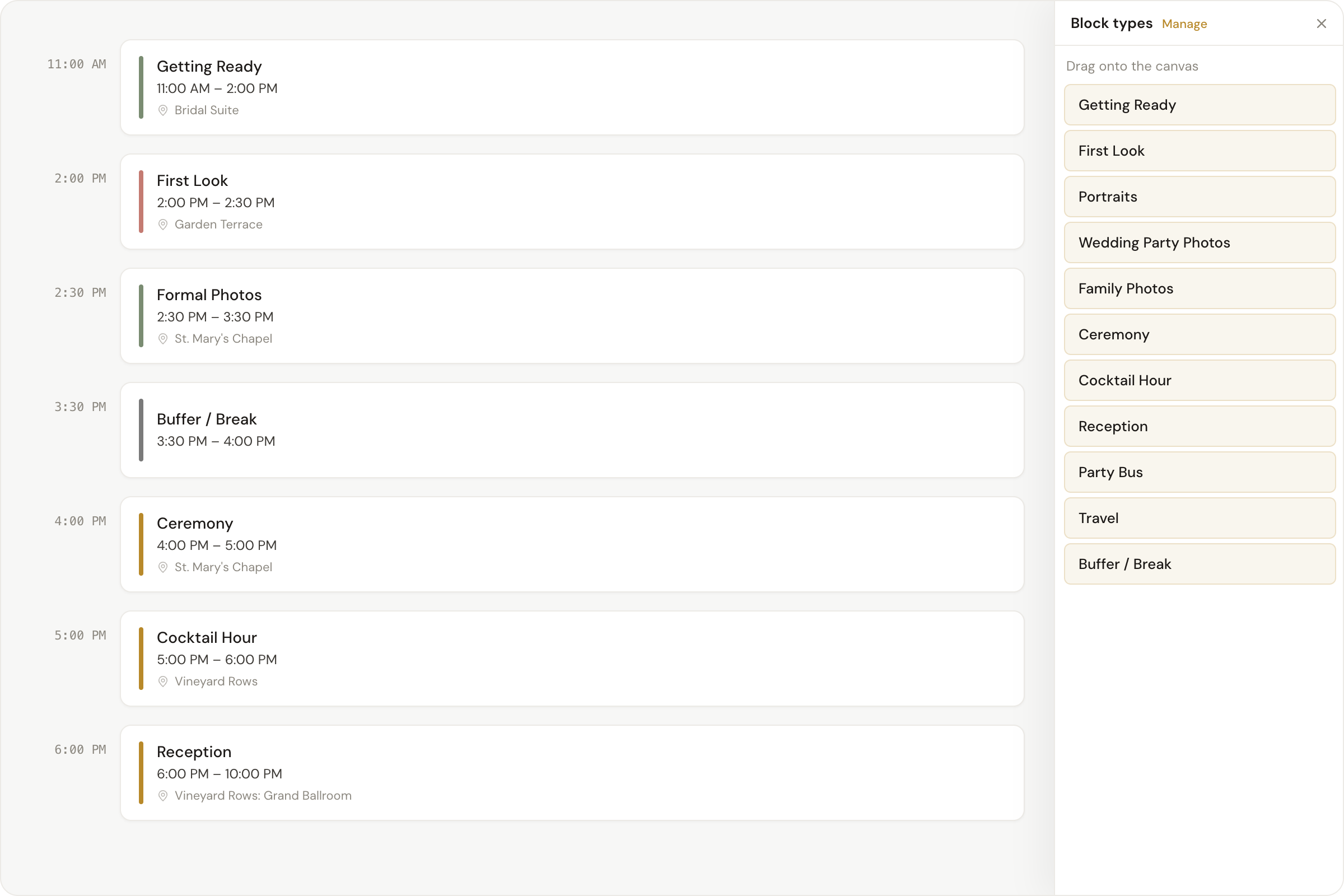
Importing into an existing wedding
When a wedding carries answers Daymarked can build from (a questionnaire you sent, a submission you created the wedding from, or details you typed into the wedding yourself), its empty timeline leads with Build timeline instead of the usual Import questionnaire prompt. The same button also lives in the wedding's Details panel, so it's not a one-time offer tied to an empty timeline. Run it again later once more answers have come in, even after the timeline already has blocks on it.
How answers map to blocks
Ceremony, Reception, and Getting Ready answers (location, time, or both) turn directly into their matching blocks. First Look is added when the First Look switch on the wedding's Details tab is on, and the two photo blocks go before the ceremony with a first look or after it once the ceremony has an end time. This part is exact: it reads the same standard fields the questionnaire's Details section fills in.
Any custom question you've added gets a second look. If its wording names one of your block types (a question that mentions "First Look," say), Daymarked reads that and either offers it as a new suggested block or, if a block of that type already exists on the timeline, folds the answer in as a subtask or note on the block that's already there rather than duplicating it.
Reviewing before applying
Nothing lands on the timeline without a look first. The Build timeline panel lists every block it found, the standard ones alongside anything pulled from your custom questions, each with a checkbox, so you can drop rows you don't want before building. A suggested block with no time attached gets an inline picker so you can set one before it's included.
Two modes control how it lands:
- Add layers the selected blocks onto whatever's already on the timeline, skipping any block type that's already there so nothing gets duplicated.
- Replace rebuilds the standard blocks from scratch, useful after the couple has updated their answers and the timeline needs to catch up.
Either way, nothing changes until you confirm. The button tells you exactly how many blocks you're about to add or replace before you click it.